
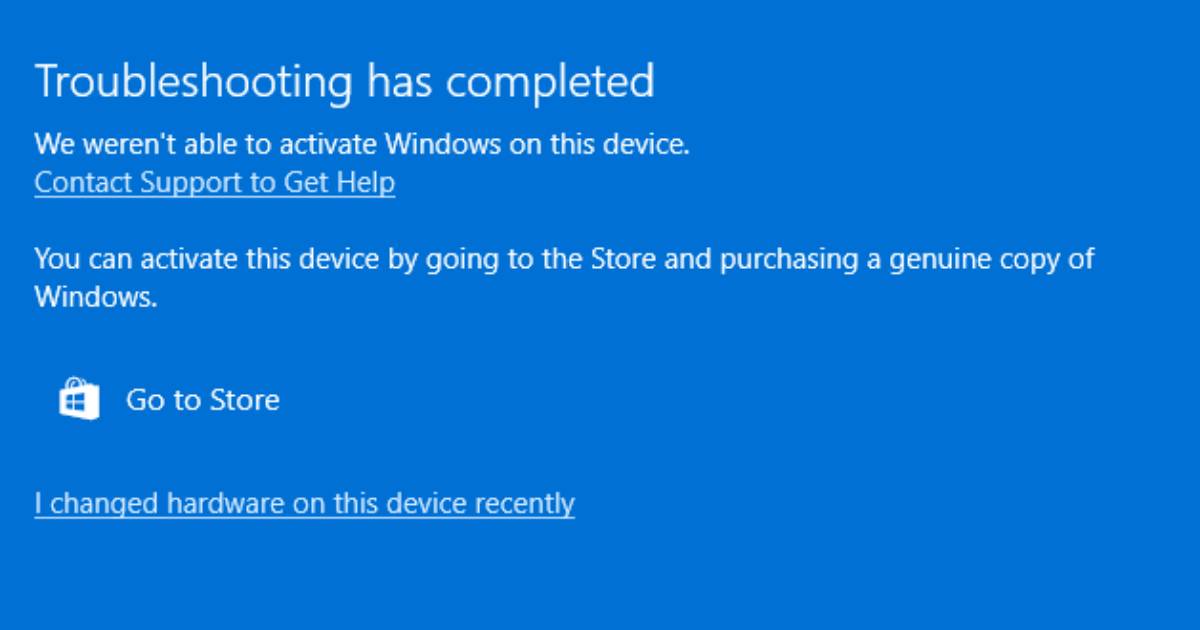
Upgrading your PC or Changing the hardware can definitely boost performance, but it can also cause Windows 11 to lose its activation. This happens because Microsoft’s activation servers look at a unique signature for each computer. When you change major parts like the motherboard or CPU, that signature changes and Windows might not recognize your device anymore. Usually, just entering your product key again fixes it, but sometimes it can stay linked to the old hardware.
The good news is that getting Windows activated again is usually pretty simple once you understand how the licensing works and follow the right steps.
Before You Making Any Change
Taking a few precautions beforehand can save you a lot of trouble later:
* Make sure your Windows is already activated
* Link your license to your Microsoft account
* Confirm your Windows edition (Home or Pro)
Your license will only reactivate if you reinstall the same edition after the upgrade.
Method 1: Reactivate Using Your Microsoft Account
If your digital license is linked to your Microsoft account, this is the easiest method.
Steps
1. Open Settings
2. Go to System then Activation
3. Click Troubleshoot
4. Select “I changed hardware on this device recently”
5. Sign in with your Microsoft account
6. Choose your device from the list
7. Click Activate
This method reconnects your license to the updated hardware.
Method 2: Use Your Product Key
If you originally activated Windows with a product key, you can use it again.
Steps
1. Open Settings
2. Go to System then Activation
3. Click Change product key
4. Enter your 25 character key
This works for Windows 11 retail licenses and upgrades that were activated manually.
Method 3: Run the Activation Troubleshooter
Windows includes a built in tool that can detect and fix activation problems.
Steps
- Open Settings
- Navigate to System then Activation
- Click Troubleshoot
- Follow the on screen instructions
The troubleshooter can automatically resolve issues or guide you through reactivation.
What If Reactivation Fails
If none of the methods work, here are your options:
- Verify you are using the same Microsoft account linked to the license
- Ensure the Windows edition has not changed
- Re enter your original product key
- Contact Microsoft support for manual activation
- Purchase a new license if required
In some cases, especially with OEM licenses, activation may not transfer to new hardware.
Common Mistakes to Avoid
- Changing the Windows edition after hardware upgrade
- Not linking your license to a Microsoft account before upgrades
- Losing your product key
- Expecting OEM licenses to transfer freely
Extra Tips
- Always link your license to your Microsoft account before upgrading hardware
- Keep a backup of your product key
- Avoid multiple major hardware changes at once if possible
- Use a retail license if you plan frequent upgrades
Note : if your old license was OEM and died with the motherboard, the permanent fix is a transferable Windows 11 Pro key, which can be moved to new hardware without this problem.
Conclusion
Reactivating Windows 11 after hardware changes is usually simple if your license is properly linked or you still have your product key. The Activation Troubleshooter and Microsoft account integration make the process easier than ever.
Planning ahead is the key. If you prepare your system before upgrading, you can avoid most activation problems entirely.